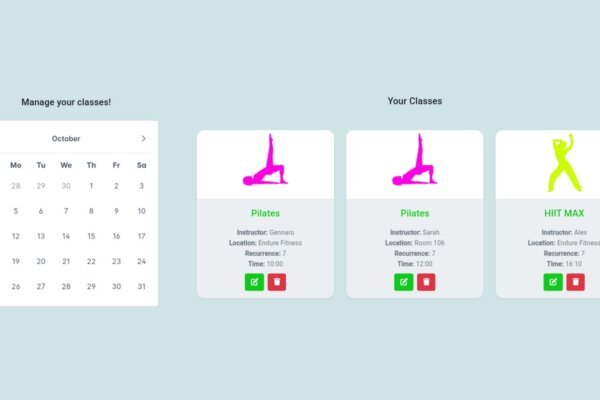
A Google Calendar booking system for a fitness studio is class booking software that sends classes to Google Calendar. It is not Google’s own booking pages. In ClassesBook, members, instructors and owners each connect their own Google account. The sync runs one way, from ClassesBook to Google. It syncs to Google Calendar and never reads from it.
This guide covers who syncs what, then gives you a checklist to compare tools. How members book in the first place is in our class booking app guide.
How this Google Calendar booking system works
ClassesBook writes to your primary Google Calendar. It creates, updates and deletes only its own events. It never reads, imports or shows your other events, so your personal calendar stays yours. That is the first thing to want from a Google Calendar booking system: it writes, but it never reads.
Changes go out straight away. That covers new or edited sessions, extra sessions, instructor changes, cancellations and deletions, and bookings made or cancelled. The sync is live on every plan.
Members: add class schedule to Google Calendar
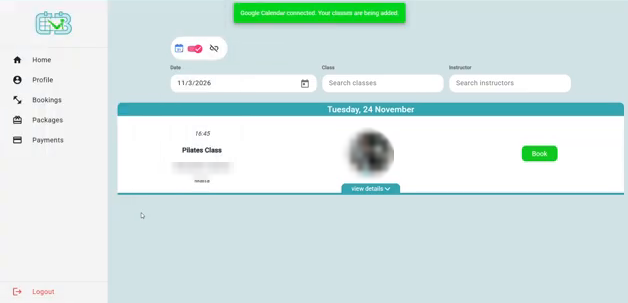
Members get the classes they book. On Home, they tap the small calendar icon at the top of the class list, then sign in with Google and accept the consent screen. A banner then confirms that Google Calendar is connected. If they sign in to ClassesBook with Google, they must pick the same Google account.
When a member cancels a booking, the event leaves their calendar. When the studio cancels a session, it leaves everyone’s calendar. Reminders follow the member’s own Google Calendar defaults. So the Google Calendar booking system keeps each member’s calendar in step with their bookings.
Instructors teaching at more than one studio
Instructors get the classes they teach, across all their studios. So an instructor who teaches at two ClassesBook studios sees both timetables in one Google Calendar. They connect with the same calendar icon on Home.
Owners choose which classes sync
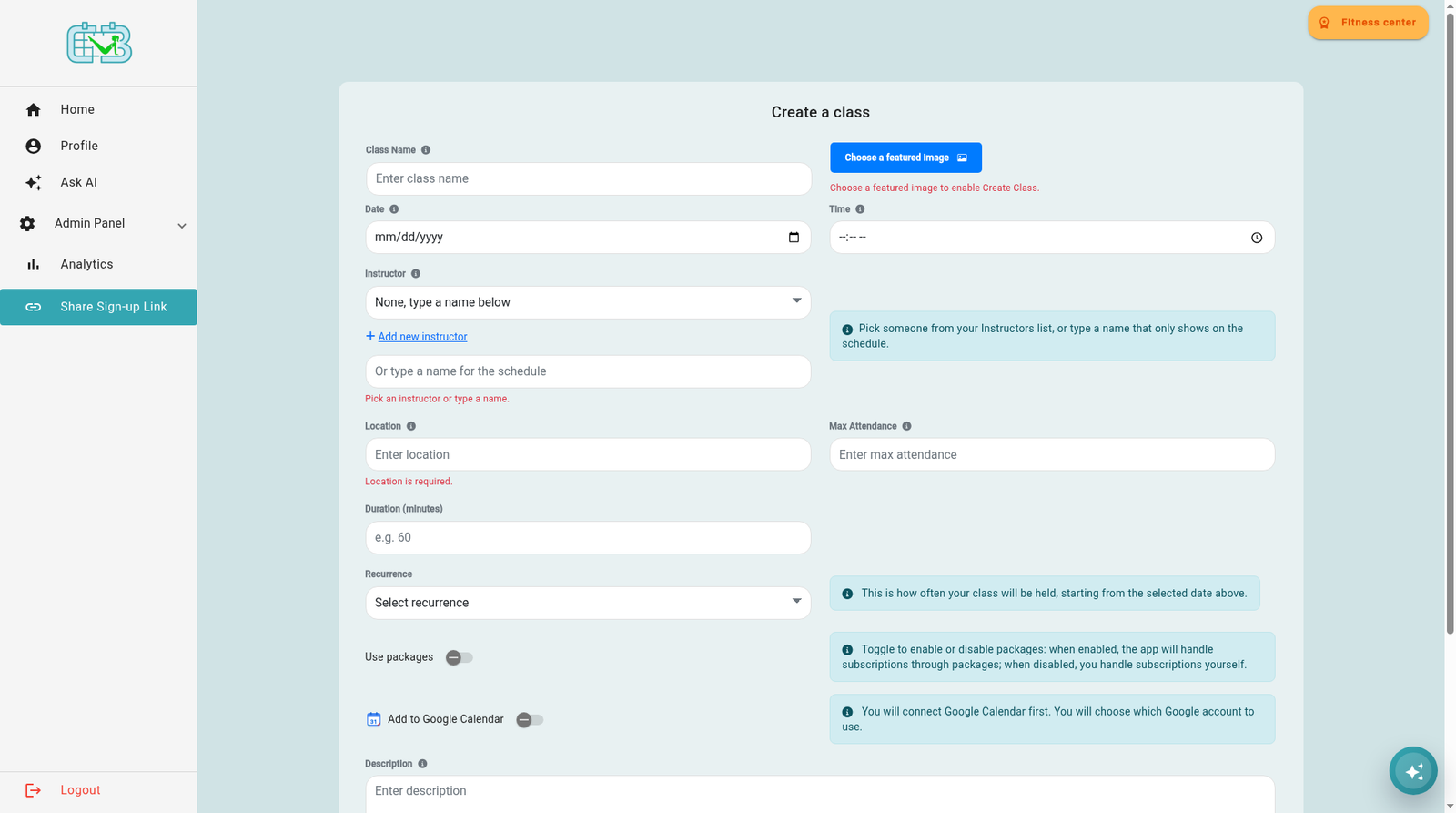
Owners decide class by class. In the class template form, they switch on Add to Google Calendar. ClassesBook then adds every upcoming session of that class, by default about 30 days ahead. That way the Google Calendar booking system carries only the classes you choose.
Switching a class off removes its upcoming entries. However, owners have no separate disconnect inside the app. Like anyone, they can revoke access in their Google account settings.
What a Google Calendar booking system event shows
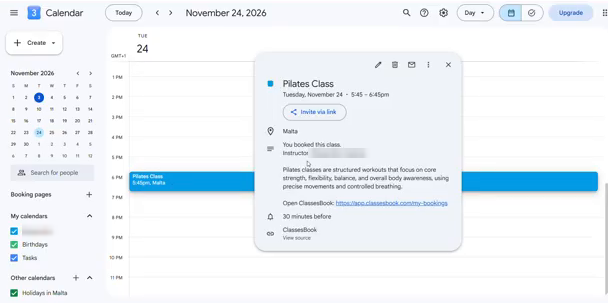
Each event shows the class name, the time with its time zone, the location, the instructor, and the description. It also says “You booked this class” or “You teach this class”, with a link back to ClassesBook. It never shows member names or attendee lists.
Disconnecting and your data
For members and instructors, turning the Home toggle off removes upcoming entries. Past entries stay, and ClassesBook revokes its access. Any Google Calendar booking system should explain this before you connect. The connection asks for the calendar events permission, which Google describes as “View and edit events on all your calendars”.
Our privacy policy explains the Calendar data in section 11. It also commits to the Google API Services User Data Policy, including its Limited Use requirements.
A checklist for any Google Calendar booking system
Before you choose an online booking system for Google Calendar, ask each vendor these questions:
- Is the sync one way or two way, and does the tool ever read your other events?
- Who can connect: owners, instructors, members, or only staff?
- Can the owner pick which classes sync?
- How fast do changes arrive, and how far ahead does it sync?
- Does a cancellation remove the event?
- What does an event show, and does it ever include member names?
- What happens to upcoming and past entries when someone disconnects?
Then compare the answers side by side. Questions about ClassesBook go to support@classesbook.com.