
Gym check in software should get a booked member from the door to your class roster with one scan, and no one at the desk ticking names. In ClassesBook, each class has its own QR code. A member scans it, the app checks them in, and the roster and history update. Here’s that path, one arrival at a time, along with what it doesn’t cover.
Who scans what in gym check in software
Check-in is off by default. So the owner turns on Class check-in in Settings, once per studio. Instructors don’t see that switch.
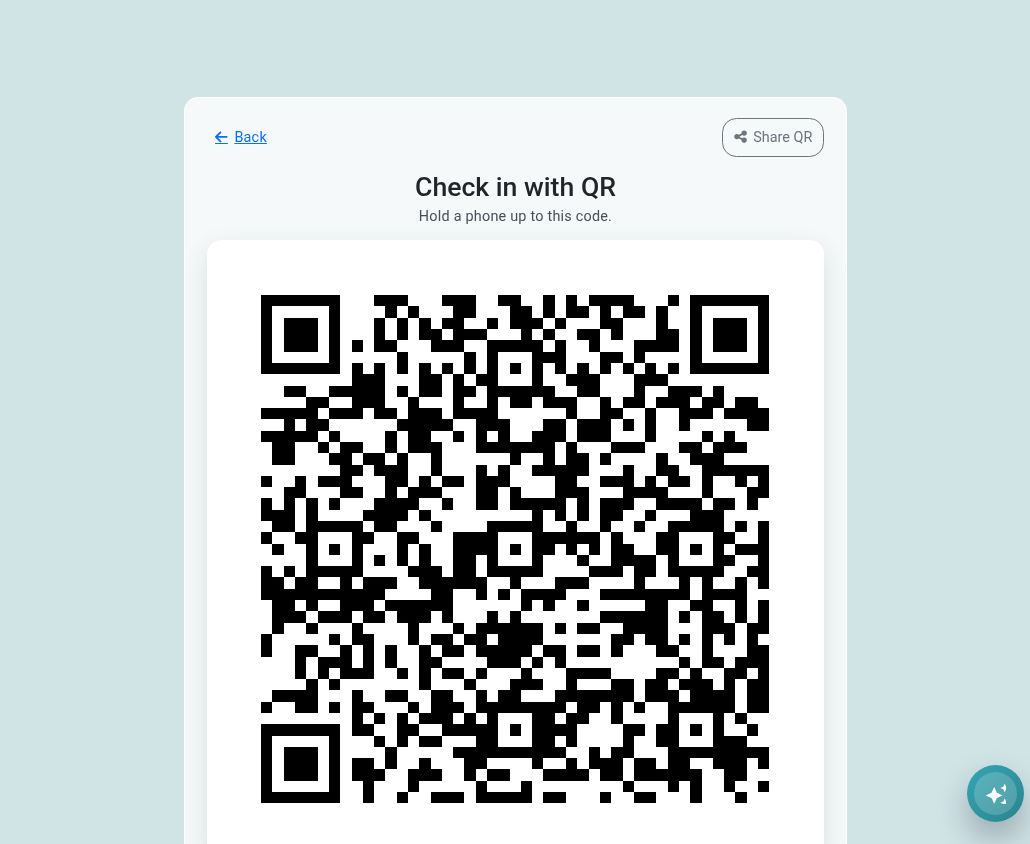
Once it’s on, every class session gets its own QR code. The member scans the class code; they never show a code of their own. They can use Scan to check in in the ClassesBook app, or any phone camera or QR reader.
That works because the QR code is a published standard, not a ClassesBook-only format. DENSO WAVE, the company that created it, notes on its standards page that QR Code “is established as an ISO (ISO/IEC18004) standard”. For classes, a qr code check in system is only as useful as the booking behind it, so the rest of this article follows that booking.
When gym check in software opens and closes
The check-in window opens 30 minutes before the class starts. For members, it closes when the class ends. Staff have more room, because they can mark attendance from the moment the window opens, and also after the class. The gym check in software handles that timing, so nobody at the desk has to watch the clock.
What a scan does in gym check in software
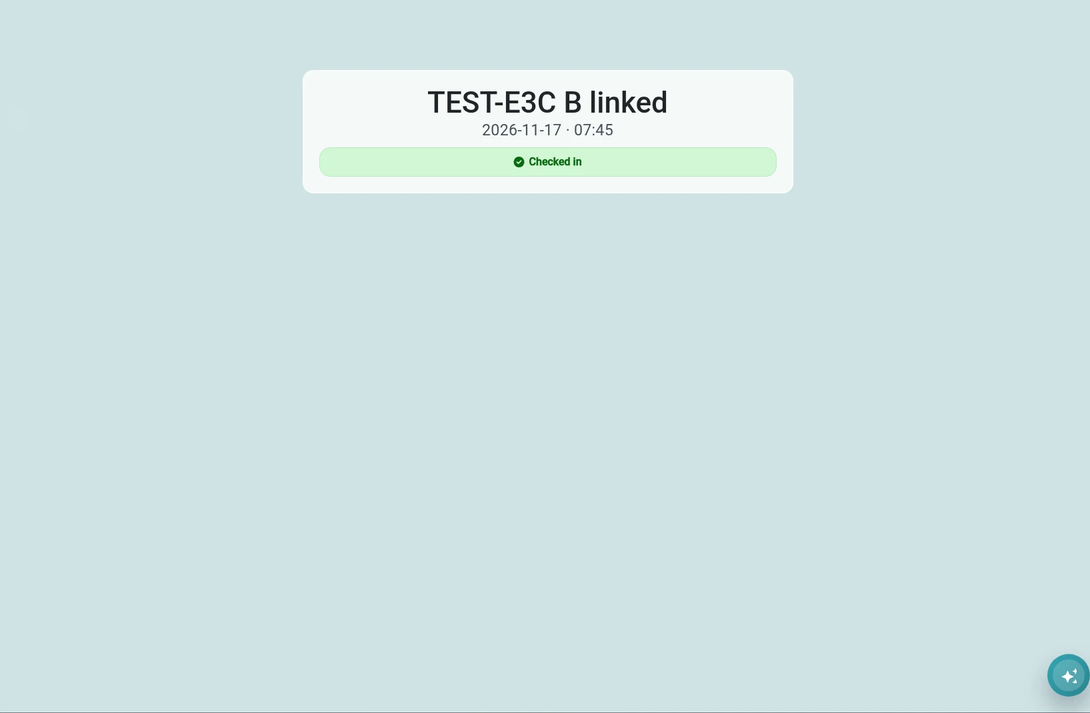
The app checks in a booked, logged-in member as soon as they scan. There’s no confirm tap, and that’s the point of gym check in software: the scan is the check-in. If they aren’t logged in, they sign in first, and then the check-in goes through.
The member then sees a confirmation on their phone. However, a scan doesn’t always succeed. If they’re too early, too late or not booked, the app shows a notice instead.
There’s also a second route. A member can open My Bookings and tap Check in, and the record shows the method as Self.
What this gym check in system is built around: the booking
Check-in is for booked members, because the gym check in software ties every scan to a booking. A walk-in can’t check in, and a waitlist spot doesn’t count either. So if someone turns up without a booking, they book first, then scan.
Also, members can’t undo their own check-in. Only staff can: the instructor of that class or the studio owner. For more on how members book and join classes, see our guide to gym class booking software.
The live class roster in your gym check in software
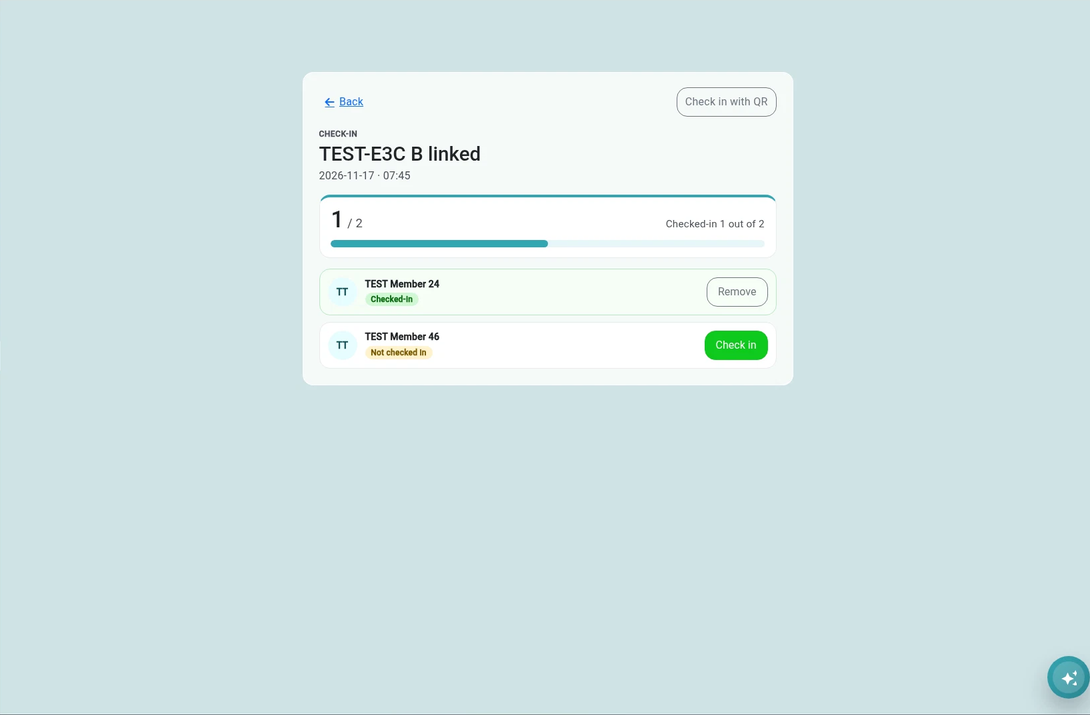
Staff open the roster from the class card menu, then Check in. The top line reads “Checked-in n out of total”. Below it, each booked attendee shows as Checked-in or Not checked in.
The roster updates live while members scan, so staff see the gym check in software at work during the class. Staff can also check someone in by hand, or remove a check-in. The owner sees every class, while instructors see the roster for their own sessions.
Check-in history for gym attendance tracking
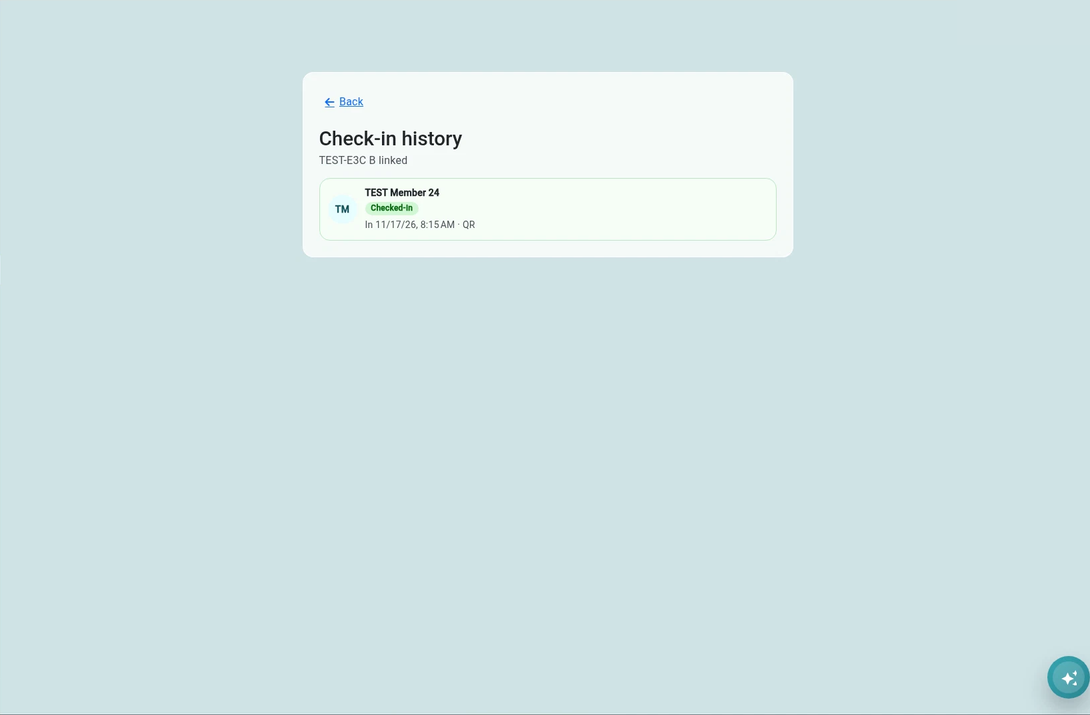
If you’re weighing gym attendance tracking software, the history is the part to look at. It’s for the owner only. Each row shows the member’s name, the check-in time and the method (QR, Self or Manual). Most rows stay that way, with no out time, because members don’t check out and the class ending doesn’t close the visit.
If staff later remove the check-in or the booking, or the class is cancelled, the row stays. It then also shows the time that visit was closed, and the reason. That way, the gym check in software gives you an honest record of who came to which class, rather than a list that rewrites itself.
Setting up a gym check in kiosk for self check in
The kiosk is a browser page. You open it on any screen or tablet by the door, and members scan from their own phones. You don’t need special hardware to run the gym check in software at the door.
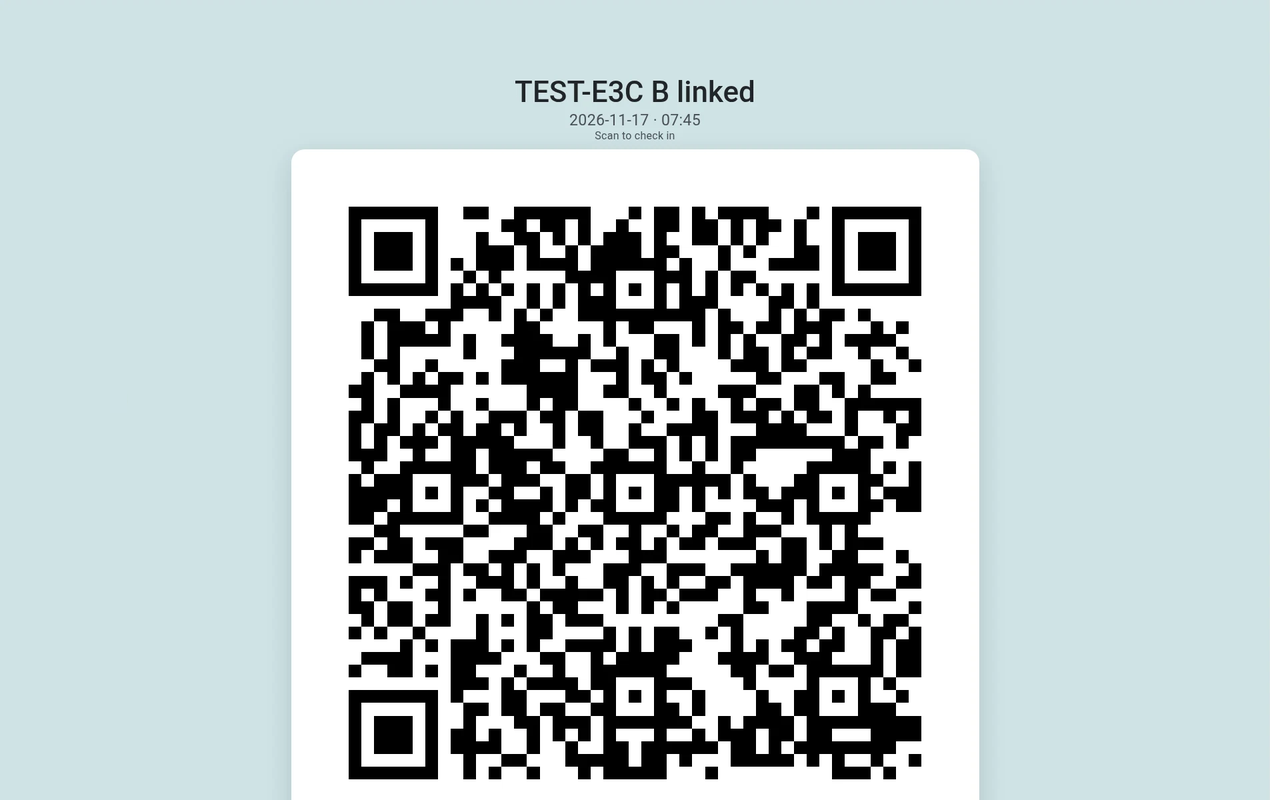
The kiosk shows the class name, date and time, the words “Scan to check in” and a large QR code. It doesn’t show member names. So a shared screen at the entrance gives away nothing about who has booked. That makes gym self check in simple: the member walks in, scans the screen and goes to class.
Which plans include class check-in
Class check-in comes with both the Pro and Fitness Center plans. You can compare them on the ClassesBook pricing page, and the full feature list shows the rest of the features.
Before you switch it on, check three things. First, members need a booking to check in. Second, decide where the kiosk screen goes. Third, tell instructors they’ll find the roster in the class card menu. If members are new to booking in the app, the class booking app overview is a good page to send them.